How to Extract Text from an Image? A Complete Guide
Imagine you’re reading a book or scrolling through a PDF file online and come across some really useful information. You want to save this content, but typing it would take a lot of time and effort. So, what’s the first thing that comes to your mind? Probably, finding an online tool that can convert the text from a scanned image into an editable format. Right?
Fortunately, many online tools can transform image-encoded content into a machine-readable and editable format. So, let’s explore the easiest and quickest ways to extract text from an image.
How to Extract Text from an Image? 4 Quick and Easy Methods to Explore
Extracting text from images has now become much easier with multiple tools and software available online. Whether it’s a scanned document, an image from a book, or a simple screenshot, you can quickly retrieve its embedded text and convert it into editable content in a few easy steps. Below are some convenient methods discussed with a step-by-step guide:
Manual Extraction
Despite a huge time consumption and effort, retrieving text manually is still the most widely used method. Just open the document you want to extract content from and type the text word by word. As this method is slow and tiring, it works best when the text is short and the tools can’t read that properly.
Optical Character Recognition Tools
Optical Character Recognition or OCR is nowadays the most popular way to extract text from images. The OCR software works by retrieving the text from a scanned image and converting it into an editable form with just a few clicks.
- Visit image to text.
-
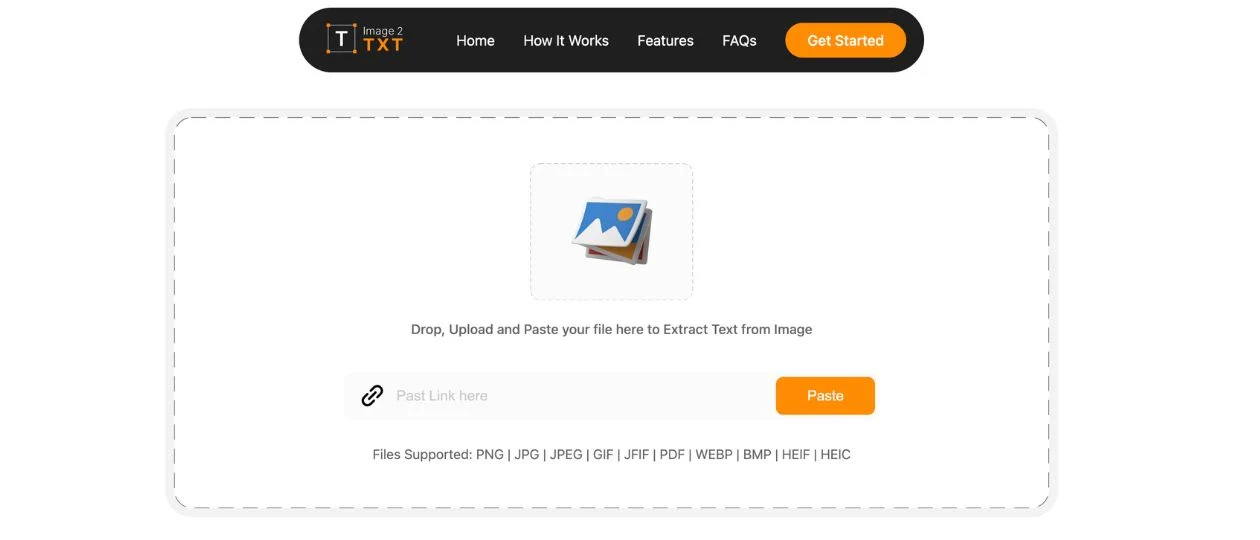
Click on the ‘Upload Image’ or ‘Browse File’ tab to add the image to this software for text
retrieval. You can also use drag and drop or URL insertion options to upload an image.
-
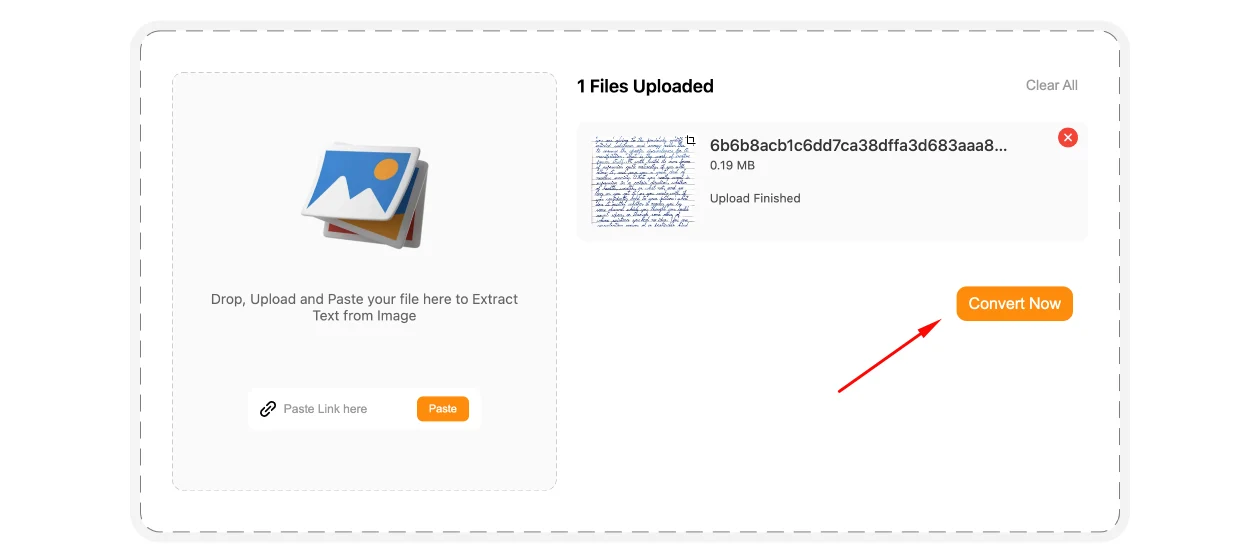
Once the image is successfully uploaded, click the ‘Extract Text’ button.
-
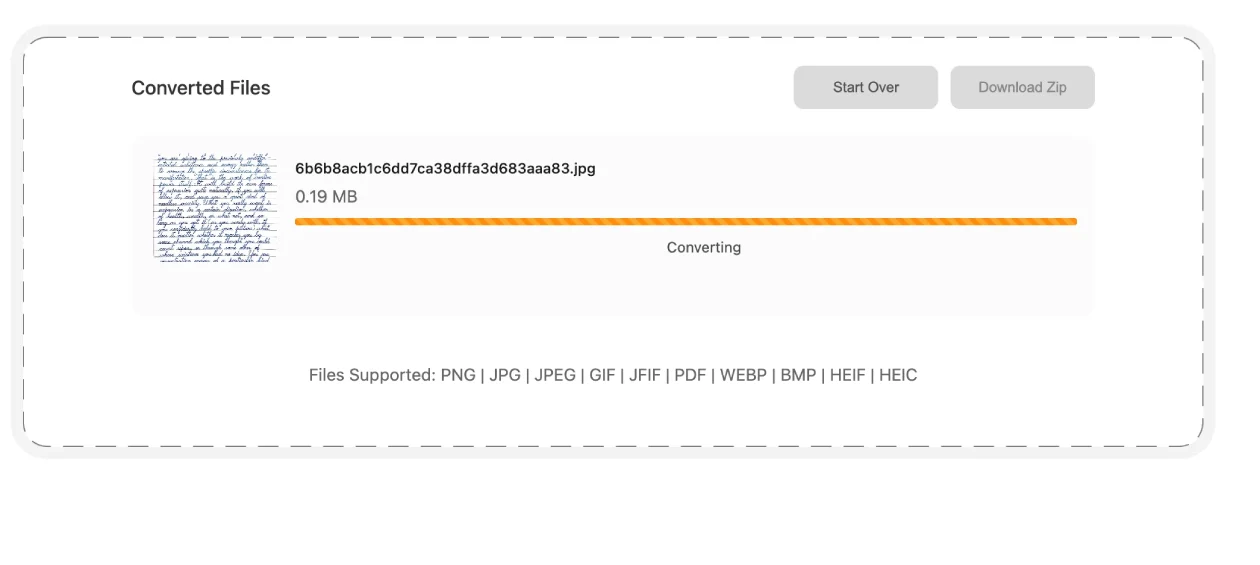
Verify the Captcha to proceed with the process completion.
-
The embedded text in the image will be displayed in the outbox, to which you can easily
copy, edit, or download instantly.
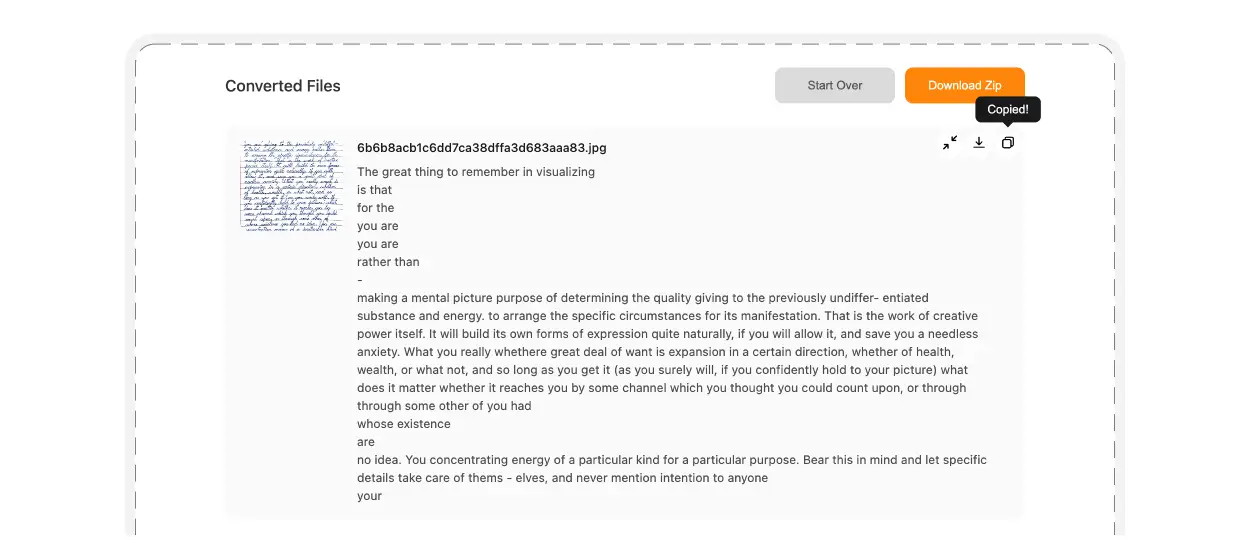
- The downloaded file will be in a PDF and machine-readable format, i.e., an editable file.
Google Drive
Google Drive has a built-in OCR functionality that many people are not aware of. With its picture-to-text feature, Google Drive converts images or scanned PDFs into text in a Google Doc.
- Upload your image or PDF to Google Drive.
- Right-click the file and hit the ‘Open with Google Docs’ tab.
- Once the upload completes, the file will open in Docs with the text extracted below the image.
- You can copy, edit, or save the text as needed.
Note: Make sure to proofread the text before downloading the file, as extracting text using this method may have formatting or other issues.
OneNote
The OCR-supported OneNote software allows users to extract text from a picture and save it to make any changes in the file. Whether you want to retrieve embedded text from a business card, an image of a brochure, or any scanned photo, OneNote makes the process easier for you. Here’s how can extract text from an image using OneNote:
- Paste the image into a OneNote file.
- Right-click the image to select the option ‘Copy Text from Picture’.
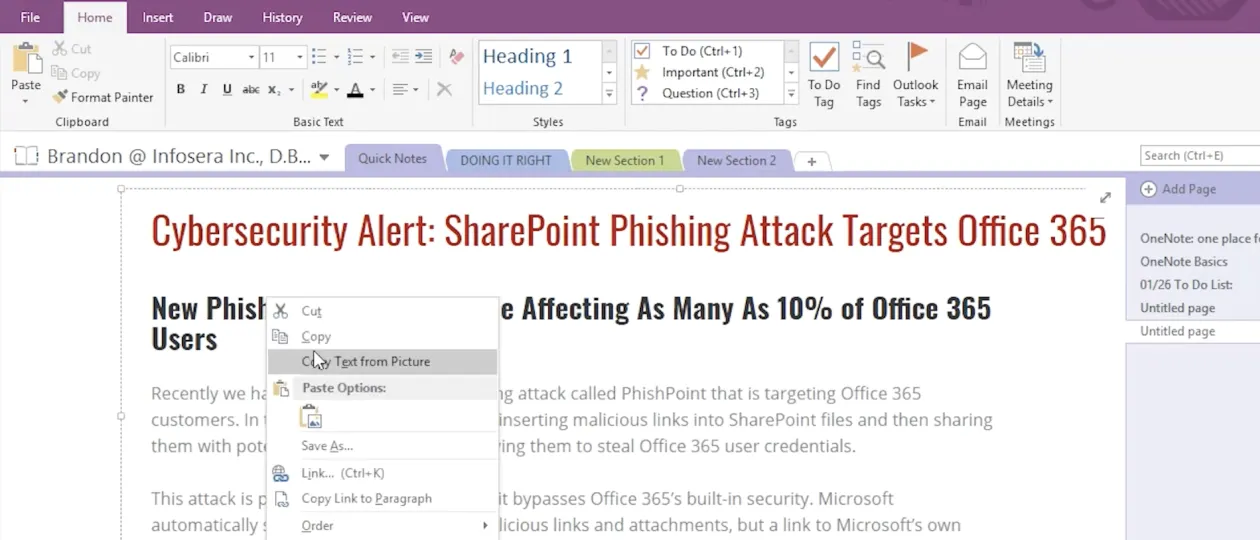
- Paste the copied text into a separate file. You can make changes to this pulled-out content conveniently.
Note: OneNote Web doesn’t allow copying text from pictures. For this purpose, you need the OneNote Desktop App on your Windows PC or Mac.
Things to Consider While Extracting Text From an Image
Many online text extractor tools and software offer a convenient and quick way to retrieve contextual data from a picture. However, there are some important points to consider, such as:
- All text extraction tools may face issues in reading the content accurately due to poor formatting, a handwritten file, or alignment problems. Therefore, it's important to proofread content after text extraction to remove any chances of errors.
- Online text extraction tools may not understand textual content from poor-quality images properly. So, using High-Definition (HD) images is recommended to capture text and convert it into an editable document.
- Always verify the supported formats before using an image-to-text conversion tool, as some tools don’t accept every file type for text retrieval, copying, or editing.
What are the Benefits of Text Extraction from an Image?
In today’s digital world, images and video content are mostly used in various industries, such as healthcare, business, finance, legal, and ecommerce. That’s why text extraction has now become very useful to retrieve the text from an image and convert it into well-structured and editable content.
Here are the key reasons why text extraction tools are in high demand these days:
Quick Note-Taking
Copying notes is now much easier with text extractors. Instead of copying the content manually, you can simply upload a screenshot or image of that page to extract its whole text in a few seconds. Also, you can make any required changes in the file and download it.
Document Digitization
With the advancement of technology, document digitization is essential to handle the bulk of data efficiently. Especially, large-scale businesses must digitize their data with OCR-powered text extraction tools to save, update, and cross-check information in a large number of databases.
A Powerful Aid for the Visually Impaired
Image-to-text extraction is highly beneficial for people with visual impairments. Usually, these people rely on text-to-speech conversion software to understand a written document. However, this option is not available when the content is in a picture format. By converting images into text, screen readers can read it aloud, making information more accessible for such individuals.
Breaks the Language Gap
Image-to-text extraction can also help overcome language barriers, especially while travelling to foreign countries. The signboards, direction instructions, and all documents can easily be translated into your native language by taking the images and then retrieving their text.